Microsoft SQL (MSSQL) is Microsoft's SQL-based relational database management system. Unlike MySQL, which we discussed in the last section, MSSQL is closed source and was initially written to run on Windows operating systems. It is popular among database administrators and developers when building applications that run on Microsoft's .NET framework due to its strong native support for .NET. There are versions of MSSQL that will run on Linux and MacOS, but we will more likely come across MSSQL instances on targets running Windows.
MSSQL Clients
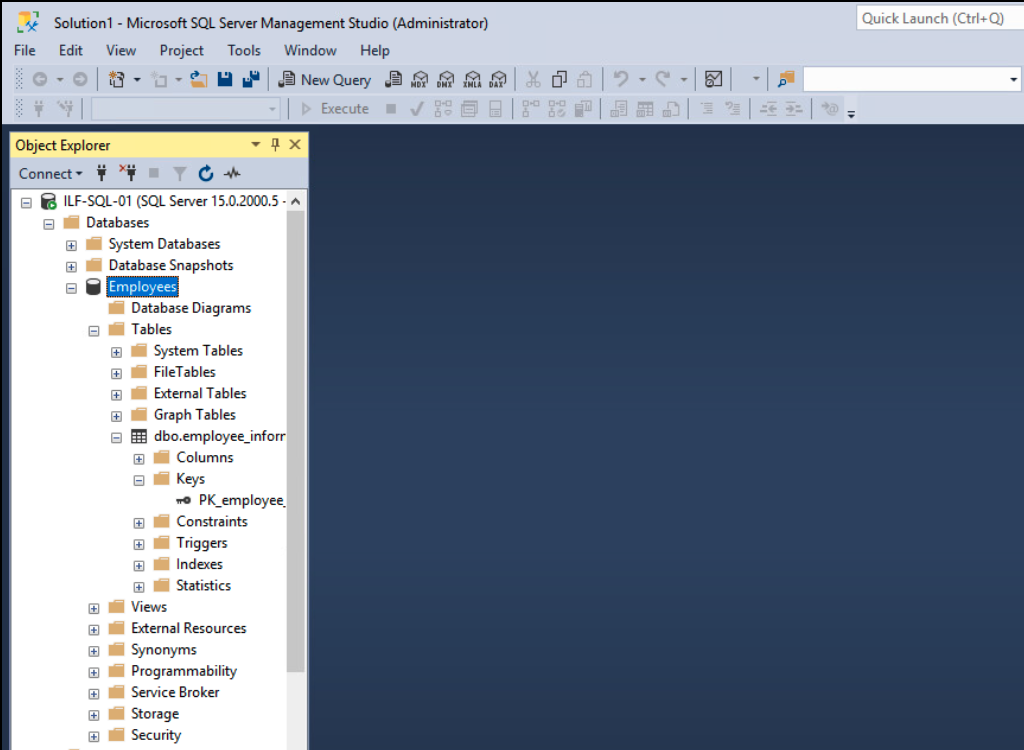
SQL Server Management Studio (SSMS) comes as a feature that can be installed with the MSSQL install package or can be downloaded & installed separately. It is commonly installed on the server for initial configuration and long-term management of databases by admins. Keep in mind that since SSMS is a client-side application, it can be installed and used on any system an admin or developer is planning to manage the database from. It doesn't only exist on the server hosting the database. This means we could come across a vulnerable system with SSMS with saved credentials that allow us to connect to the database. The image below shows SSMS in action.
Any other clients can be used to access a database running on MSSQL. Including but not limited to:
| mssql-cli | SQL Server PowerShell | HeidiSQL | SQLPro | Impacket's mssqlclient.py |
Of the MSSQL clients listed above, pentesters may find Impacket's mssqlclient.py to be the most useful due to SecureAuthCorp's Impacket project being present on many pentesting distributions at install. To find if and where the client is located on our host, we can use the following command:
aymane0x90@htb[/htb]$ locate mssqlclient

/usr/bin/impacket-mssqlclient
/usr/share/doc/python3-impacket/examples/mssqlclient.py
MSSQL Databases
MSSQL has default system databases that can help us understand the structure of all the databases that may be hosted on a target server. Here are the default databases and a brief description of each:
| Default System Database | Description |
|---|---|
master |
Tracks all system information for an SQL server instance |
model |
Template database that acts as a structure for every new database created. Any setting changed in the model database will be reflected in any new database created after changes to the model database |
msdb |
The SQL Server Agent uses this database to schedule jobs & alerts |
tempdb |
Stores temporary objects |
resource |
Read-only database containing system objects included with SQL server |
Table source: System Databases Microsoft Doc
Default Configuration
When an admin initially installs and configures MSSQL to be network accessible, the SQL service will likely run as NT SERVICE\MSSQLSERVER. Connecting from the client-side is possible through Windows Authentication, and by default, encryption is not enforced when attempting to connect.
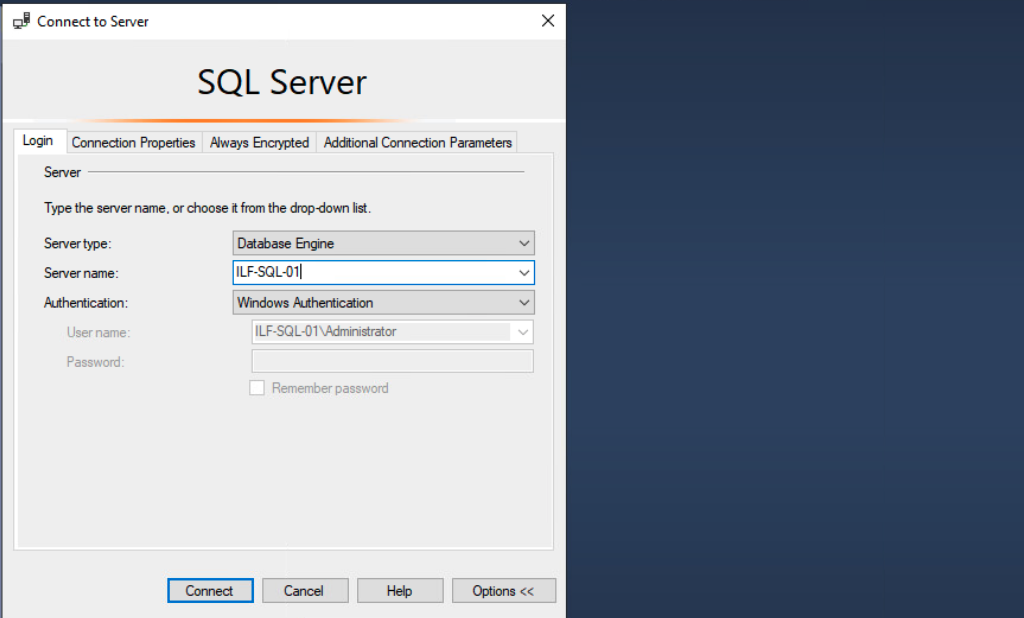
Authentication being set to Windows Authentication means that the underlying Windows OS will process the login request and use either the local SAM database or the domain controller (hosting Active Directory) before allowing connectivity to the database management system. Using Active Directory can be ideal for auditing activity and controlling access in a Windows environment, but if an account is compromised, it could lead to privilege escalation and lateral movement across a Windows domain environment.
Dangerous Settings
It can be beneficial to place ourselves in the perspective of an IT administrator when we are on an engagement. This mindset can help us remember to look for various settings that may have been misconfigured or configured in a dangerous manner by an admin. It only takes one tiny misconfiguration that could compromise a critical server or service on the network. This applies to just about every network service and server role that can be configured, including MSSQL.
This is not an extensive list because there are countless ways MSSQL databases can be configured by admins based on the needs of their respective organizations. We may benefit from looking into the following:
- MSSQL clients not using encryption to connect to the MSSQL server
- The use of self-signed certificates when encryption is being used. It is possible to spoof self-signed certificates
- The use of named pipes
- Weak & default
sacredentials. Admins may forget to disable this account
Understanding Named Pipes
Named pipes are a Windows inter-process communication (IPC) mechanism that allows different processes to communicate with each other. They provide a way to exchange data on the same machine or across a network using a file-like interface. Named pipes can be created and accessed by multiple processes, enabling efficient data transfer without the need for intermediary files.
Characteristics of named pipes:
- File-like Interface: Named pipes appear as files in the filesystem, making them easy to use for IPC.
- Lifetime: They can persist beyond the life of the processes that created them, remaining available as long as the system is running.
- Access: Multiple processes can read from and write to a named pipe simultaneously.
- Blocking and Non-blocking Modes: Named pipes can operate in both blocking and non-blocking modes, allowing for flexible communication strategies.
Named Pipes in Microsoft SQL Server
Named pipes are commonly used in Microsoft SQL Server for local or trusted-network connections. They facilitate communication between SQL Server and client applications, especially in environments where TCP/IP connections may not be preferred or available.
Default configuration:
- Default Pipe Name: SQL Server listens on the named pipe
\\.\pipe\sql\queryfor default instances and\\.\pipe\MSSQL$<instancename>\sql\queryfor named instances. - Enabling Named Pipes: Named pipes must be enabled in SQL Server Configuration Manager, and the server needs to be restarted for changes to take effect.
Why they matter:
- Performance: Named pipes can offer better performance for local connections compared to network-based protocols, as they bypass the network stack.
- Security: They can be configured to work within trusted networks, providing a secure communication channel without exposing data over TCP/IP.
- Legacy Applications: Many older applications defaulted to using named pipes for SQL Server connectivity, particularly those developed in the late 1990s and early 2000s.
Footprinting the Service
There are many ways we can approach footprinting the MSSQL service, the more specific we can get with our scans, the more useful information we will be able to gather. Nmap has default mssql scripts that can be used to target the default TCP port 1433 that MSSQL listens on.
The scripted Nmap scan below provides us with helpful information. We can see the hostname, database instance name, software version of MSSQL and that named pipes are enabled. We will benefit from adding these discoveries to our notes.
Nmap MSSQL Script Scan
aymane0x90@htb[/htb]$ sudo nmap --script ms-sql-info,ms-sql-empty-password,ms-sql-xp-cmdshell,ms-sql-config,ms-sql-ntlm-info,ms-sql-tables,ms-sql-hasdbaccess,ms-sql-dac,ms-sql-dump-hashes --script-args mssql.instance-port=1433,mssql.username=sa,mssql.password=,mssql.instance-name=MSSQLSERVER -sV -p 1433 10.129.201.248

Starting Nmap 7.91 ( https://nmap.org ) at 2021-11-08 09:40 EST
Nmap scan report for 10.129.201.248
Host is up (0.15s latency).

PORT     STATE SERVICE  VERSION
1433/tcp open  ms-sql-s Microsoft SQL Server 2019 15.00.2000.00; RTM
| ms-sql-ntlm-info:
|   Target_Name: SQL-01
|   NetBIOS_Domain_Name: SQL-01
|   NetBIOS_Computer_Name: SQL-01
|   DNS_Domain_Name: SQL-01
|   DNS_Computer_Name: SQL-01
|_  Product_Version: 10.0.17763

Host script results:
| ms-sql-dac:
|_  Instance: MSSQLSERVER; DAC port: 1434 (connection failed)
| ms-sql-info:
|   Windows server name: SQL-01
|   10.129.201.248\MSSQLSERVER:
|     Instance name: MSSQLSERVER
|     Version:
|       name: Microsoft SQL Server 2019 RTM
|       number: 15.00.2000.00
|       Product: Microsoft SQL Server 2019
|       Service pack level: RTM
|       Post-SP patches applied: false
|     TCP port: 1433
|     Named pipe: \\10.129.201.248\pipe\sql\query
|_    Clustered: false

Service detection performed. Please report any incorrect results at https://nmap.org/submit/ .
Nmap done: 1 IP address (1 host up) scanned in 8.52 seconds
We can also use Metasploit to run an auxiliary scanner called mssql_ping that will scan the MSSQL service and provide helpful information in our footprinting process.
MSSQL Ping in Metasploit
msf6 auxiliary(scanner/mssql/mssql_ping) > set rhosts 10.129.201.248

rhosts => 10.129.201.248


msf6 auxiliary(scanner/mssql/mssql_ping) > run

[*] 10.129.201.248:       - SQL Server information for 10.129.201.248:
[+] 10.129.201.248:       -    ServerName      = SQL-01
[+] 10.129.201.248:       -    InstanceName    = MSSQLSERVER
[+] 10.129.201.248:       -    IsClustered     = No
[+] 10.129.201.248:       -    Version         = 15.0.2000.5
[+] 10.129.201.248:       -    tcp             = 1433
[+] 10.129.201.248:       -    np              = \\SQL-01\pipe\sql\query
[*] 10.129.201.248:       - Scanned 1 of 1 hosts (100% complete)
[*] Auxiliary module execution completed
Connecting with mssqlclient.py
If we can guess or gain access to credentials, this allows us to remotely connect to the MSSQL server and start interacting with databases using T-SQL (Transact-SQL). Authenticating with MSSQL will enable us to interact directly with databases through the SQL Database Engine. From Pwnbox or a personal attack host, we can use Impacket's mssqlclient.py to connect as seen in the output below. Once connected to the server, it may be good to get a lay of the land and list the databases present on the system.
aymane0x90@htb[/htb]$ python3 mssqlclient.py Administrator@10.129.201.248 -windows-auth

Impacket v0.9.22 - Copyright 2020 SecureAuth Corporation

Password:
[*] Encryption required, switching to TLS
[*] ENVCHANGE(DATABASE): Old Value: master, New Value: master
[*] ENVCHANGE(LANGUAGE): Old Value: , New Value: us_english
[*] ENVCHANGE(PACKETSIZE): Old Value: 4096, New Value: 16192
[*] INFO(SQL-01): Line 1: Changed database context to 'master'.
[*] INFO(SQL-01): Line 1: Changed language setting to us_english.
[*] ACK: Result: 1 - Microsoft SQL Server (150 7208)
[!] Press help for extra shell commands

SQL> select name from sys.databases

name
--------------------------------------
master
tempdb
model
msdb
Transactions